To upgrade to Tax Monitoring v3, the latest SoftSDC application will need to be downloaded and installed.
The process for upgrading/installing is a matter of running the installation for SoftSDC; existing configuration should be carried over.
If the SoftSDC application is currently installed on each POS Terminal, the SoftSDC installation process will need to be completed on each POS Terminal to upgrade to the latest SoftSDC.
Note - As of 23rd October 2026, the latest version for Fiji is still version 2, while Samoa is v3.
Refer to the Install & Configure SoftSDC page for information about downloading and installing the SoftSDC application.
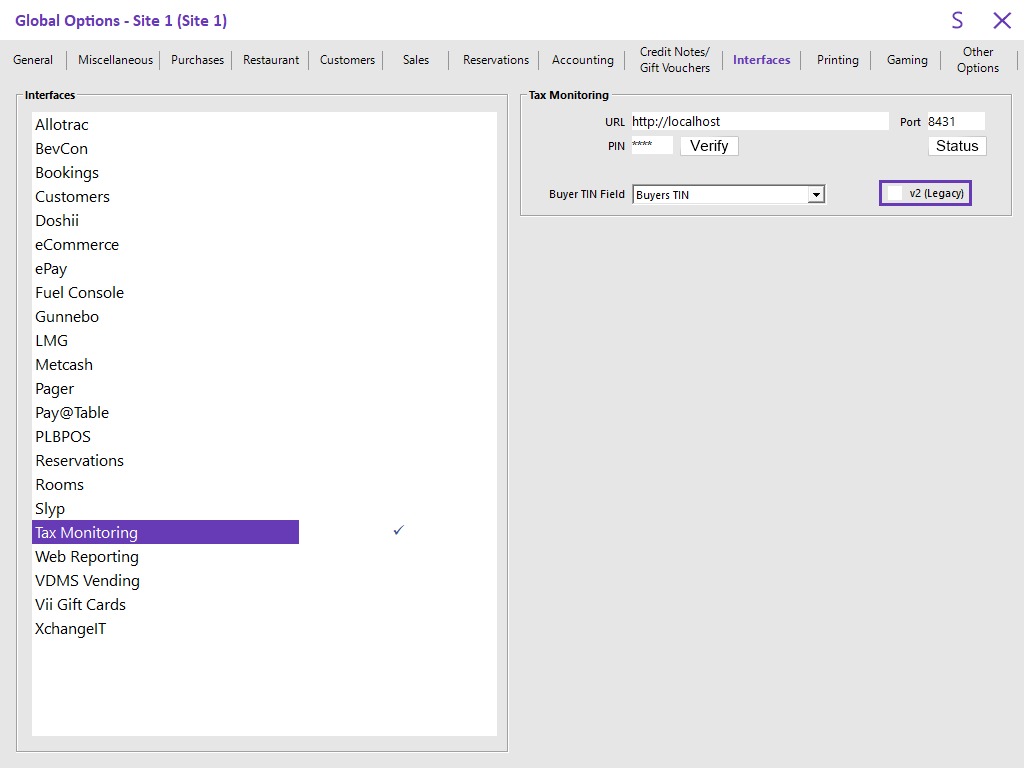
When an existing Tax Monitoring site upgrades to Idealpos v10 Build 4 or newer, the Tax Monitoring configuration in the Idealpos Global Options will by default have a "v2 (Legacy)" checkbox enabled.
When ready to switch from v2 (Legacy) to v3 (e.g. after installing/upgrading the SoftSDC application), go to: Back Office > Setup > Global Options > Interfaces > Tax Monitoring.
Uncheck the "v2 (Legacy)" checkbox.
After toggling the above option, it is recommended that a Close Suite/Open Suite is performed on all POS Terminals including the Back Office.
Go to: Start menu > Idealpos > IPSUtils > Enable "Close IPS Utility" checkbox > Press "Close" > Confirm the prompt to close suite.
Start Idealpos via the Idealpos desktop shortcut or via Start menu > Idealpos > Idealpos.
The upgrade is now completed; ensure that sales process successfully and Fiscal Receipts are produced as expected.
For information about setting up a new Tax Monitoring site, refer to Install & Configure SoftSDC and Configure Idealpos for DTI Tax Monitoring.